
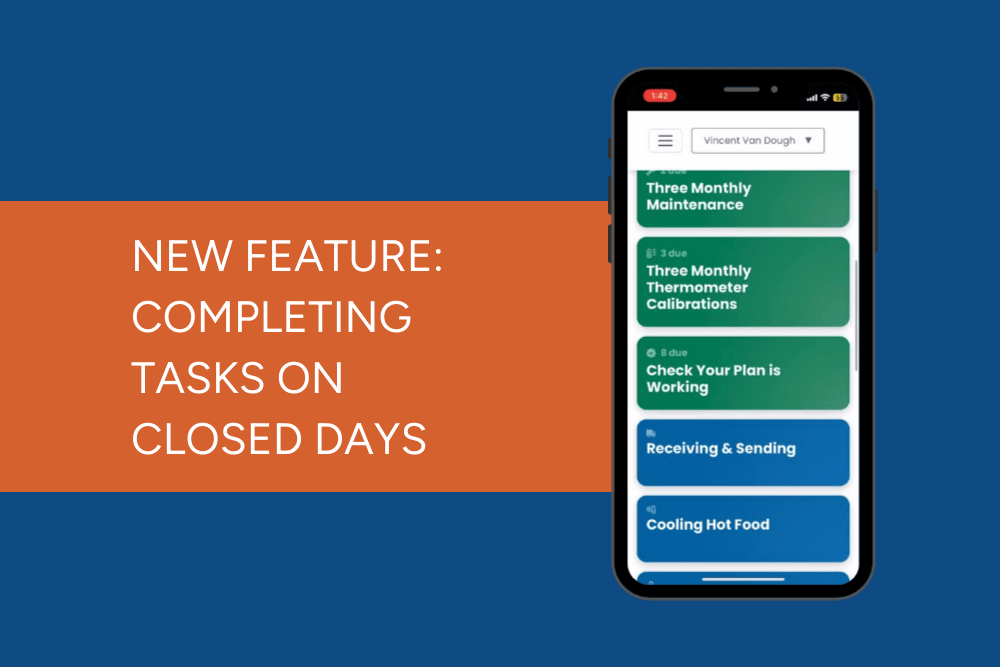
We’ve added a handy new feature to your Kitchen App:
You can now reopen tasks on scheduled closed days so you can complete important checks that may still need recording — like fridge temperatures, cleaning tasks, or anything else that happens even when the venue isn’t open.
How to view and complete tasks on closed days
This feature is automatically enabled for:
-
All venues that already have closed days scheduled
-
Any venues that add new closed days in the future (via ChompHQ management dashboard)
Here’s how to use it:
-
Open your Kitchen App
-
On a scheduled closed day, tap “Open Anyway”
-
Your task list for that day will appear
-
Complete the tasks you need and save as normal
How to re-close your venue after completing tasks
If you’ve opened your venue on a scheduled closed day to complete tasks (like fridge temperature checks or cleaning logs), you’ll need to re-close it once you’re done. This keeps your records accurate and ensures your audit trail reflects the correct status.
Follow these quick steps to re-close your venue:
- Open the menu. Tap the three-line (hamburger) menu in the top left corner of your Kitchen App.
- Select “Re-close Venue”. A side menu will slide out. Scroll if needed, then tap “Re-close Venue.”
- You’re done. Your venue will now return to closed status, while keeping any completed tasks logged for that day.
How it shows in your audit report
Your venue will still be marked as Closed for that day, but any tasks you complete will still appear in the report. This keeps your records accurate without changing your opening schedule.
