
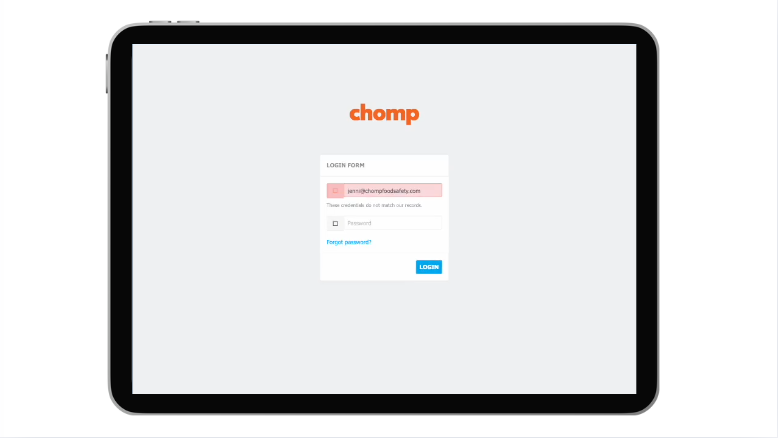
Trouble Logging Into ChompHQ?
If you’re having trouble accessing your ChompHQ management dashboard, follow these quick steps to reset your password and get back in.
How to Reset Your ChompHQ Password
Step 1: Double-check your login details
Before resetting your password, try entering your email address and password again to make sure there are no typing errors.
Step 2: Click “Reset Password”
If you still can’t log in:
- Click the Reset Password link on the login page
- Enter your email address
Step 3: Check your email inbox
You’ll receive a password reset email from Chomp.
- Open the email
- Click the Reset Password button inside
Tip: Don’t forget to check your junk or spam folder if the email doesn’t appear straight away.
Step 4: Create a new password
Enter your new password and save your changes.
You’ll receive a confirmation email once your password has been successfully reset.
Step 5: Log back into ChompHQ
Return to ChompHQ and log in using your new password.
Need a Visual Walkthrough?
Check out the quick video below for a step-by-step guide.
