
Shared Kitchen Login vs Personal Login: What’s the Difference?
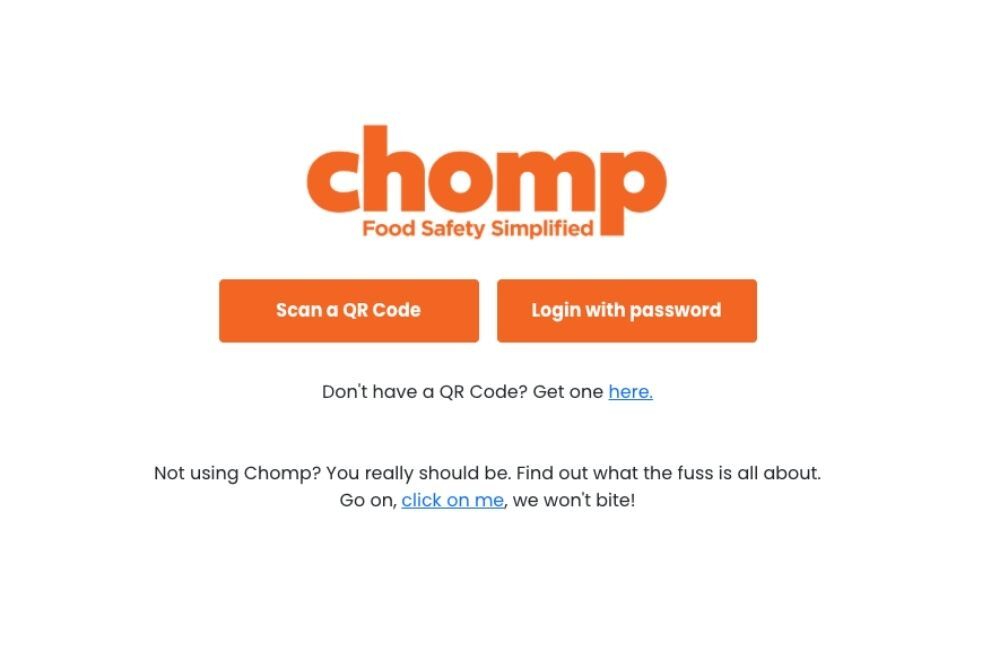
When accessing the Chomp Kitchen App, there are two ways your team can log in:
-
Shared Kitchen Login
-
Personal Login
Both give access to the same tasks and features, but they work slightly differently depending on how your kitchen operates.
Shared kitchen login
A shared kitchen login is designed for team use on a shared device, such as a tablet or phone in the kitchen.
How it works
-
Staff access the Kitchen App using a QR code or shared login button
-
The app is not tied to a specific person
-
When completing a task, staff must select their name after tapping Done
Best suited for
-
Kitchens with a dedicated device (e.g. mounted tablet)
-
Teams who don’t use personal devices during shifts
Things to keep in mind
-
Staff must remember to select their name when completing tasks
-
There’s no individual login session, it’s a shared environment
Personal Login
A Personal Login is tied to an individual user’s account.
How it works
-
Staff log in using their email and password
-
Their identity is automatically linked to any tasks they complete
-
No need to select their name when marking tasks as done
Best suited for
- Venues without a dedicated shared device
-
Teams using personal devices with a username and password
Things to keep in mind
-
Each user needs their own login credentials
Which one should you use?
Most venues use a mix of both shared login for day-to-day kitchen use on a central device and personal logins.
If your kitchen is fast-paced and device sharing is common, the shared login is a simple option.
How to find your QR Code for shared login
The Shared Kitchen Login uses a QR code, which can be found in ChompHQ.
Step 1: Access ChompHQ
Click HERE to go to ChompHQ.
Step 2: Locate the QR Code
- In ChompHQ, look at the navigation bar on the left-hand side.
- Click the “Kitchen App” title.
- Your unique QR code will appear on the screen.
Step 3: Open the Kitchen App
You have two options:
Option 1: Scan the QR Code
-
- Open your device’s camera.
- Scan the QR code displayed in ChompHQ.
- Follow the prompt to open the Chomp Kitchen App.
Option 2: Open on the Same Device
-
- Click “Open Shared Kitchen Sign In.”
- The Kitchen App will open in a new tab on your current device.
Explore more tutorials
- Tutorial - Chomp App (25)
- Tutorials: Management Dashboard (23)
- Chomp App (13)
- Chef v4 (5)
- Product Update (5)
- Cooling Foods (3)
- Log In (3)
- food audit (3)
- proving method (3)
- Android (2)
- Apple (2)
- Food Safety App (2)
- QR Code (2)
- Updates (2)
- Audit Report (1)
- Brand Reputation (1)
- Food Safety Management (1)
- Influencer (1)
- Meat or Poultry (1)
- Referral (1)
- Thermometers (1)
- received goods (1)
- suppliers (1)